Jøss. Jeg eksporterte akkurat alle meldingene fra iPhonen til en lokal mappe på dataen, som jeg kan sikkerhetskopiere nøyaktig som jeg vil. Skulle jo nesten tro at det var en mulighet Apple gir deg, men å neida du!
Derav overraskelsen min. For når jeg ser sånne steg-for-steg-oppskrifter som inneholder flere kommandoer som må skrives inn i terminalen blir jeg svett av tanken. Men det her gikk overraskende feilfritt.
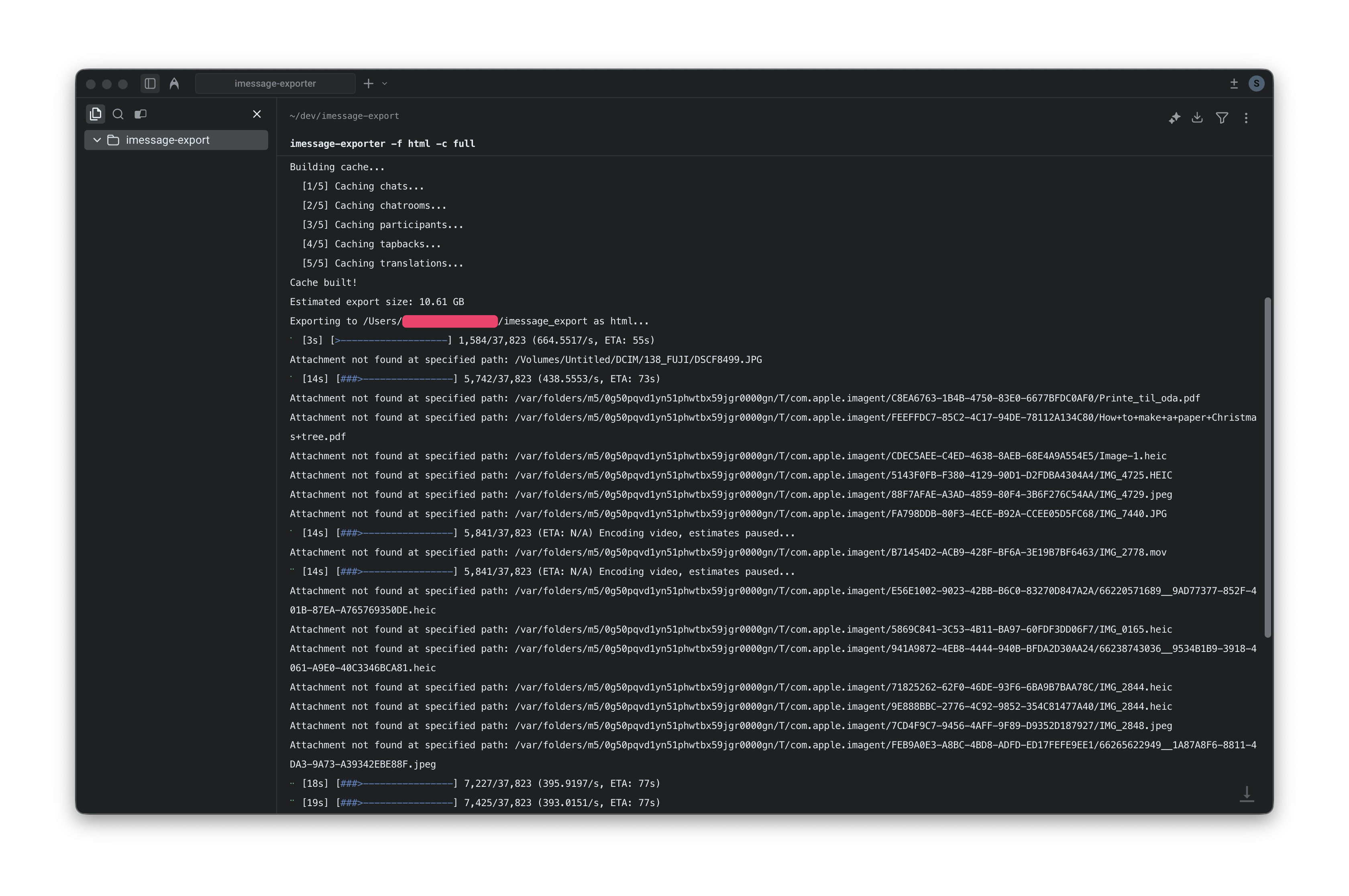
Det kuleste er egentlig at i prosessen konverteres alle bilder og film-filer fra apple sitt egne format (HEIC og MOV) til JPEG og MP4, som kan vises på uansett hva slags datamaskin eller telefon du er på.
Om du vil grave deg ned i dypet, og forstå hva du kan gjøre med dette verktøyet finner du en oversikt over alle mulighetene her. Takk og lov for ildsjeler og open source-kode når du møter veggen av Apple sitt lukka økosystem.
Personlig fulgte jeg en forenkla forklaring fra Lifehacker.com, men jeg limer den inn her for enkelhets skyld.
Fremgangsmåten er skrevet av Pranay Parab:
If all your iMessages are also available on your Mac, and you’re OK with dipping into Terminal commands, you should try iMessage Exporter, created by Reddit user /u/ReagentX. The program will export just about any iMessage data you have, including saved audio messages, Apple Pay records, edit histories for messages, replies, reactions, and more. It’s easy to use, but it requires a bit of work to set up. Here’s the process:
First, open Terminal and use the following command to install Rust:
curl [https://sh.rustup.rs](https://sh.rustup.rs/ "open in a new window") -sSf | shWhen that’s done, you’ll see a message that says Rust is installed. You may see a prompt in the Terminal that asks you to configure your current shell. Use the next command to do that:
source "$HOME/.cargo/env"You’re now ready to install iMessage Exporter. Paste and run this:
cargo install imessage-exporterYour Mac may prompt you to install Xcode command-line tools. Accept the prompt and let the installation complete. Run the previous command again to finish installing iMessage Exporter.
That’s it! You can now start exporting all the messages stored on your Mac. This page has a few useful examples of commands you can run to export your messages, and includes instructions on where to find stored iMessages. If that’s too overwhelming, run this command to finish exporting quickly:
imessage-exporter -f html -c full